
Signing in with SMS verification
How to set your mobile number for two-step verification, and how safe locations and remembered devices work.
Your customer panel holds sensitive information: invoices, domain names and DNS. That is why, besides your password, we ask for a code sent by SMS when you sign in. Your password alone is then not enough to get in.
Setting your mobile number
- Go to My account → Your details and click Set up or Change next to Mobile number.
- Enter your mobile number and click Send code.
- You will receive a text message from knippinnl with a 6-digit code. Enter it and click Confirm.
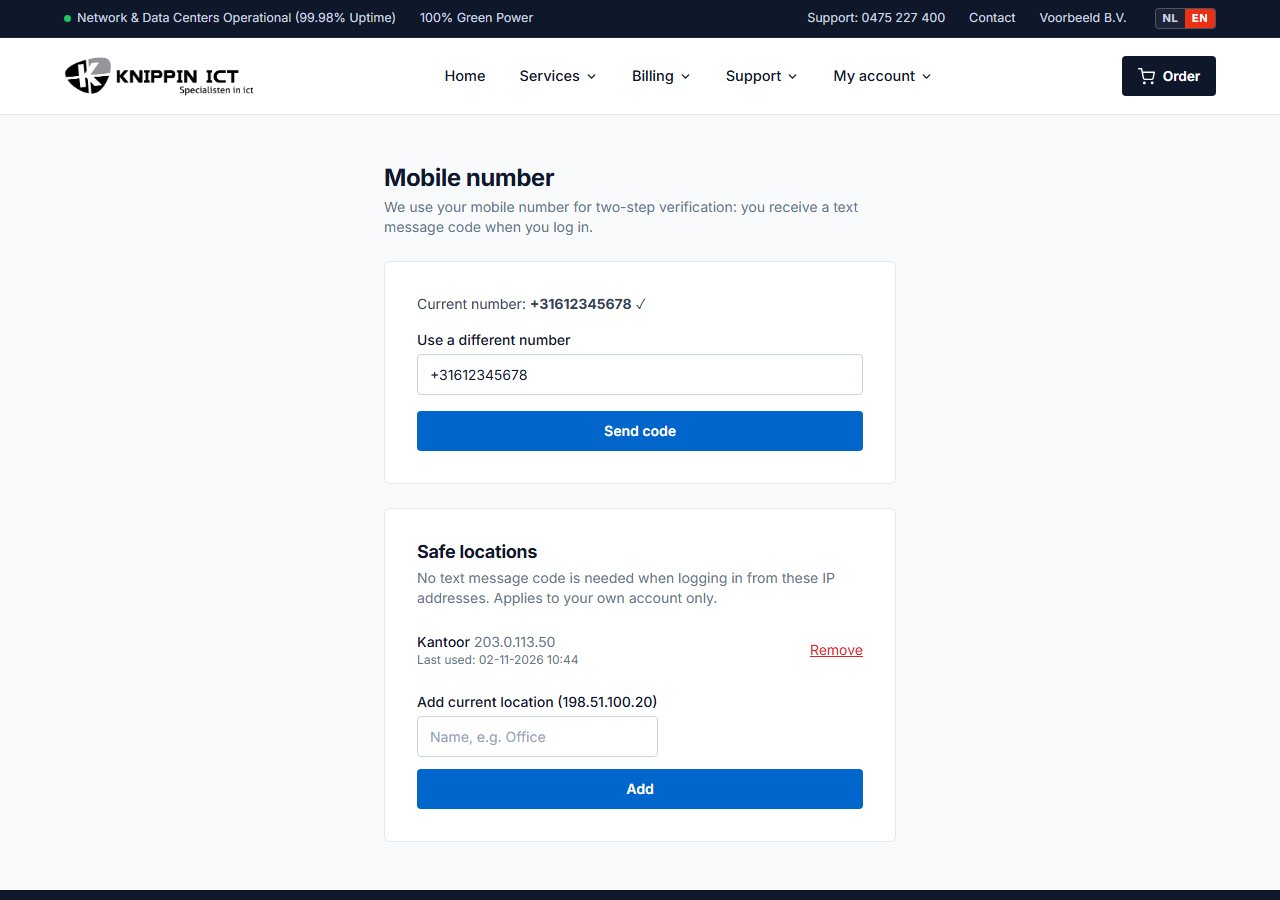
From now on you will receive a code on this number when you sign in.
Non-Dutch numbers work too. Enter them with the country code, for example
+32 470 12 34 56.
Signing in
- Sign in with your email address and password.
- You will receive a text message with a code. It is valid for 10 minutes.
- Enter the code and click Log in.
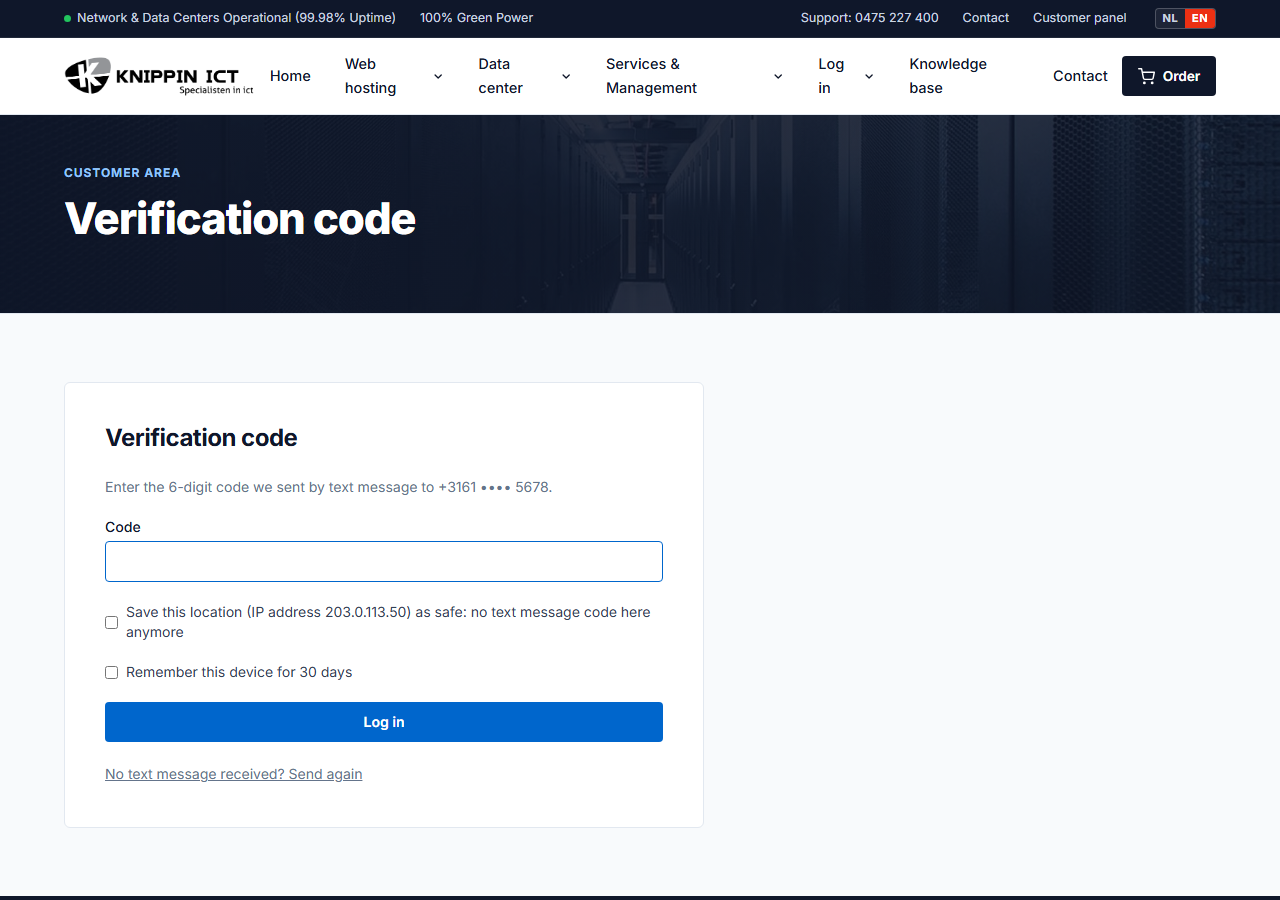
No text message? After half a minute, click No text message received? Send again. The new message comes from a regular phone number. After five wrong attempts the code expires and you request a new one.
Fewer codes: remembered device or safe location
There are two ways to avoid entering a code every time:
- Remember this device for 30 days. Tick this box when you enter the code. On this computer and in this browser, we will not ask for a code for 30 days.
- Safe location. Save the IP address of, for example, your office as a safe location. From that address no SMS code is needed. You can do this when entering the code, or later under My account → Your details → Mobile number at Safe locations.
A safe location only applies to your own account. Other customers on the same address cannot use it.
Only use safe locations for a fixed IP address at a place you trust, such as your office. Never for public Wi-Fi, a hotel or a hotspot.
New phone number or lost phone?
- New number, old phone still at hand: sign in and set the new number as described above.
- No longer access to the old number: call us. After verifying your identity, we reset SMS verification so you can set a new number.