
Managing DNS records
Adding and removing records in the customer panel, with an explanation of A, AAAA, CNAME, MX, TXT, SRV and CAA.
DNS records tell the internet, for example, where your website runs (A record) and where your email arrives (MX record). If your domain's DNS is hosted by Knippin (DirectAdmin or Hetzner), you manage the records yourself in the customer panel.
Viewing and adding records
- Go to Services → Domains and click the domain.
- Click Manage DNS records.
- Under Add record, fill in:
- Name:
@for the domain itself, or a subdomain such aswwwormail; - Type: see the table below;
- Value: for example an IP address or host name;
- TTL: how long other servers may remember the record, in seconds. The default of 3600 (1 hour) is usually fine.
- Name:
- Click Add.
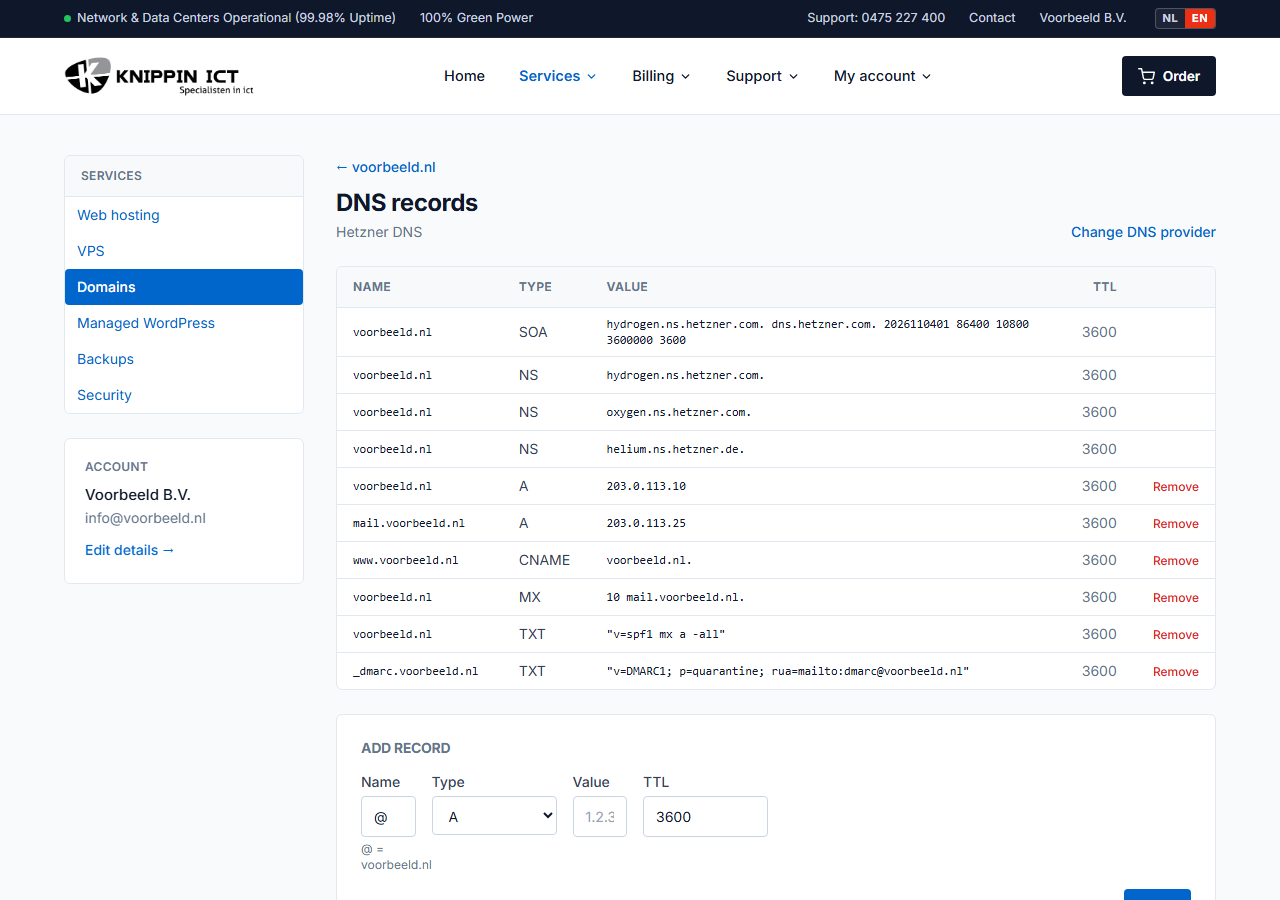
Don't see the Manage DNS records button? Then the DNS is not hosted by Knippin. See Changing nameservers.
Record types
| Type | Purpose | Example value |
|---|---|---|
| A | Domain or subdomain to an IPv4 address | 203.0.113.10 |
| AAAA | Domain or subdomain to an IPv6 address | 2001:db8::10 |
| CNAME | Subdomain as an alias of another host name | example.com. |
| MX | Mail server that receives email, with priority (lower = first) | 10 mail.example.com. |
| TXT | Text, for SPF, DKIM, DMARC and service verification among others | v=spf1 mx -all |
| SRV | Location of a service, for example for Teams or autodiscover | 100 1 443 sipdir.online.lync.com. |
| CAA | Which certificate authorities may issue SSL certificates for your domain | 0 issue "letsencrypt.org" |
A host name used as a value should preferably end with a dot, such as
mail.example.com.. Without the dot, some systems append your own domain name.
Changing a record
Changing a record takes two steps: first add the new record, then remove the old one with Remove. That way there is never a moment without a record.
The NS and SOA records of the domain itself belong to the zone and cannot be removed.
Common mistakes
- CNAME on
@: not allowed. Use an A record for the domain itself. A CNAME also cannot coexist with other records of the same name. - Two SPF records: there may be only one TXT record with
v=spf1. Combine extra senders into one record. See Setting up SPF and DMARC. - Patience: a change is active on our nameservers immediately. Other servers may remember the old value until the TTL has passed.