
Creating and managing FTP accounts
Give a web designer or colleague their own FTP login, limited to one folder or subdomain.
With a separate FTP account you give someone access to part of your files without sharing your DirectAdmin password. Useful for a web designer or for a single subdomain.
Creating an FTP account
- Go to Account Manager → FTP Management and click Create FTP Account.
- Enter a Username. The full login becomes, for example,
webdesigner@voorbeeld.nl. - Choose a strong Password, or let the dice icon generate one.
- Under Root directory, choose where the account may go:
- Domain: the domain folder (
domains/voorbeeld.nl), includingpublic_html; - Public FTP: only the
public_ftpfolder; - Custom: a folder of your choice, for example only
domains/shop.voorbeeld.nl/public_htmlfor a subdomain.
- Domain: the domain folder (
- Click Create.
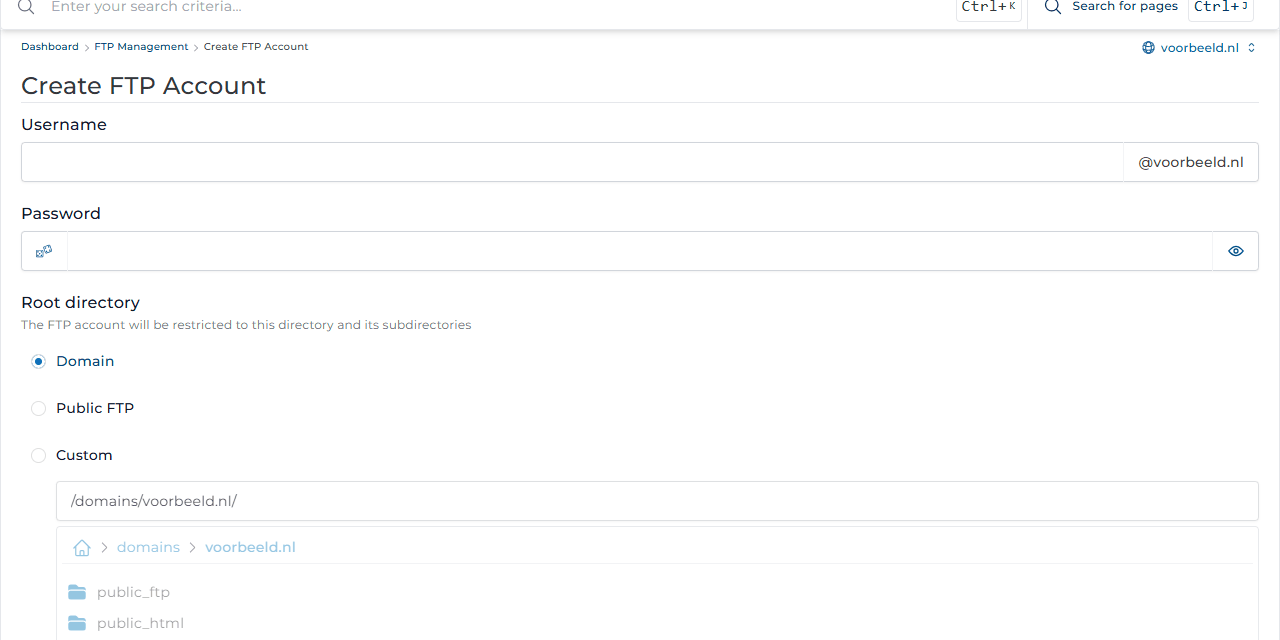
The account cannot leave the chosen folder. See Uploading your website for your FTP client's settings.
Changing or deleting
The FTP Management overview lists every account with its folder (Server Path). Use the menu (⋯) next to an account to change its password or folder. Tick accounts to delete them; the files stay where they are.
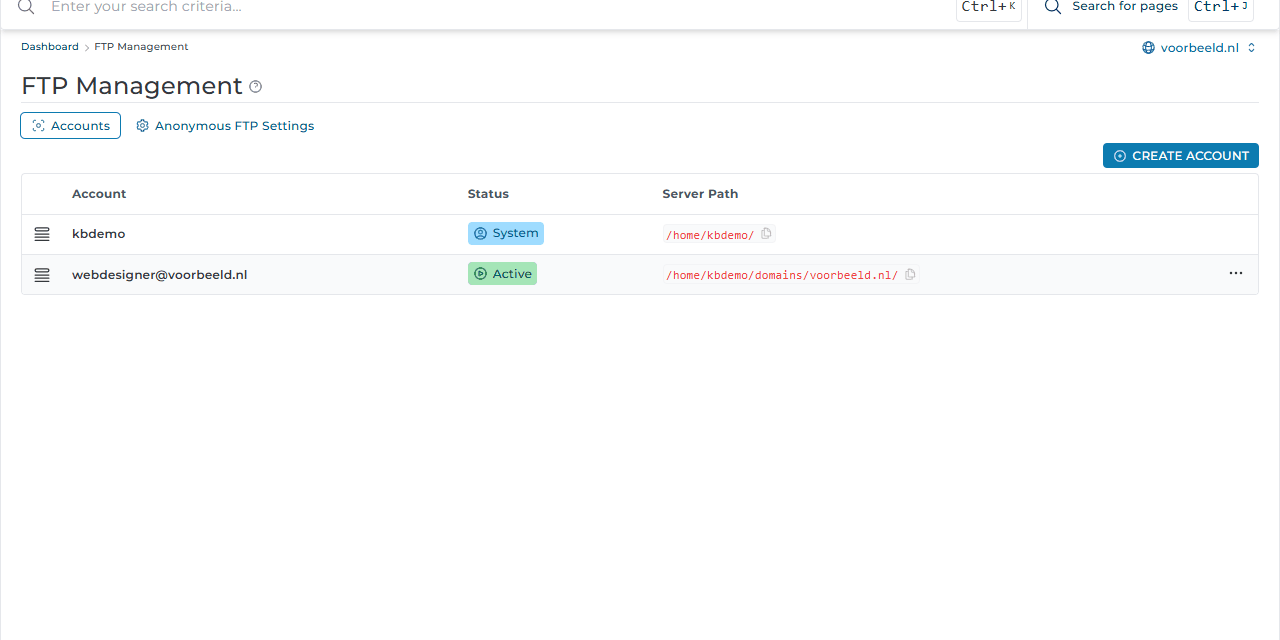
The account with your own username (type System) is your main account and cannot be deleted.
Anonymous FTP
Anonymous FTP Settings let anyone download from public_ftp without a password. Leave this off (Allow: None) unless you really need it. A download link on your website is almost always better.