
Two-step authentication and login keys in DirectAdmin
Protect your DirectAdmin account with a code from your phone, and give scripts their own key instead of your password.
With two-step authentication you need a code from your phone as well as your password to log in. Someone who has your password still cannot get in.
Turning on two-step authentication
- Install an authenticator app on your phone, such as Google Authenticator, Microsoft Authenticator or 2FAS.
- In DirectAdmin, go to Advanced Features → Two-Step Authentication.
- Click Generate Secret. A QR code appears.
- Scan the QR code with the app and enter the 6-digit code to confirm.
- Under Recovery Codes, click Add Codes and keep the recovery codes somewhere safe. They get you in if you lose your phone.
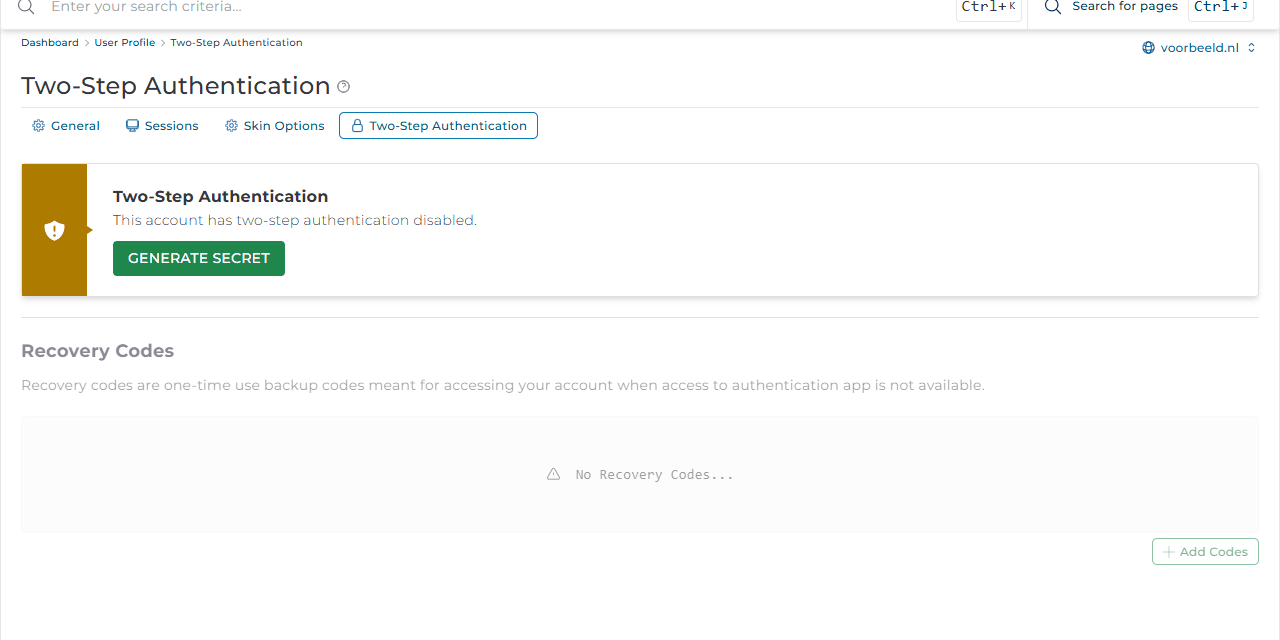
From now on, DirectAdmin asks for the code from the app after your password.
Lost your phone and no recovery codes left? Create a ticket. After verifying your identity, we will turn two-step authentication off for you.
Login keys
A login key is an extra password with restrictions. Use one for a script or an external service that needs to talk to DirectAdmin, so you never have to hand out your own password.
- Go to Advanced Features → Login Keys and click Create Key.
- Name the key, choose which functions it may use (Allow and Deny), from which IP addresses (Allowed Networks) and until when it is valid (Expires).
- Copy the key right away: DirectAdmin shows it only once.
No longer need a key? Click Remove Key next to it. Log shows when the key was used.