Forwarding, autoresponders and vacation messages
Forward email to another address, reply automatically and set an out-of-office message.
Forwarding (forwarder)
A forwarder is an address without its own mailbox: all mail goes straight on to one or more other addresses. For example, verkoop@voorbeeld.nl to your own mailbox.
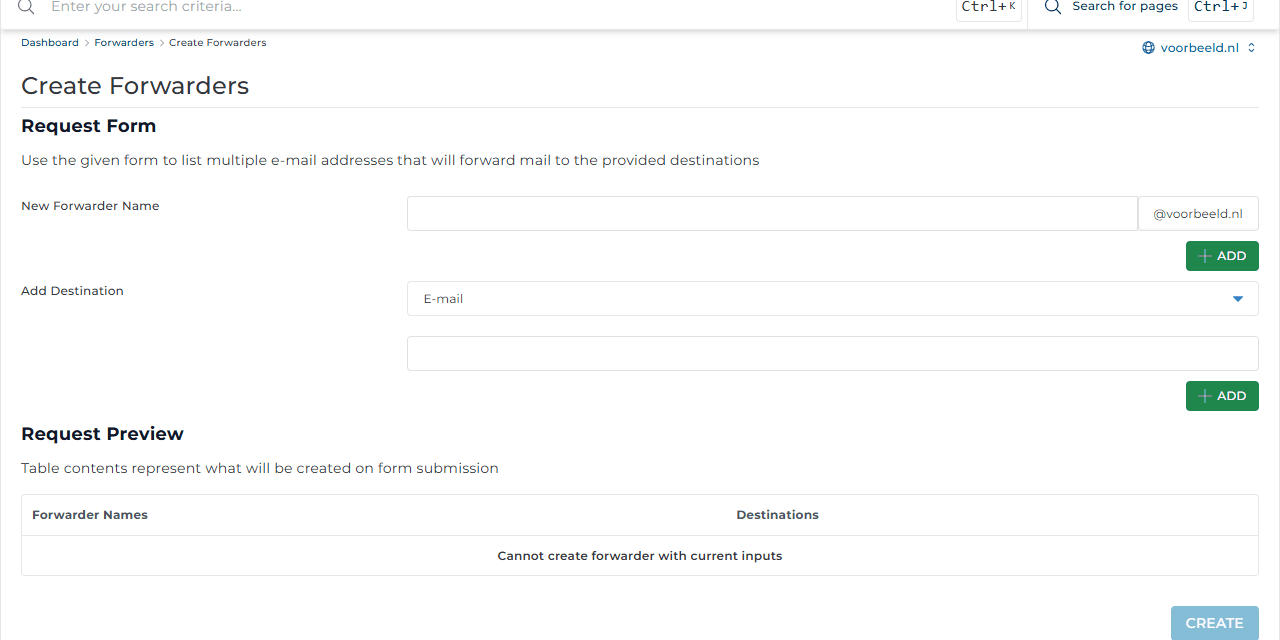
- Go to E-mail Manager → Forwarders and click Create E-mail Forwarder.
- Under New Forwarder Name, enter the part before the @, for example
sales. - Under Add Destination, enter where the mail should go and click Add. Repeat for more recipients.
- Check the Request Preview and click Create.
Use Modify to change the recipients later and Delete to remove the forwarder.
Want an existing mailbox to keep its mail and also send a copy to another address? Set that up with a filter in webmail: Settings → Filters.
Avoid forwarding to Gmail, Outlook.com or Hotmail. When spam comes in, the server forwards it and may itself be seen as a spammer. Add your mailbox to the app you use via IMAP instead.
Autoresponder
An autoresponder automatically sends a fixed reply to every incoming email. Useful for an address such as support@: "We have received your message."
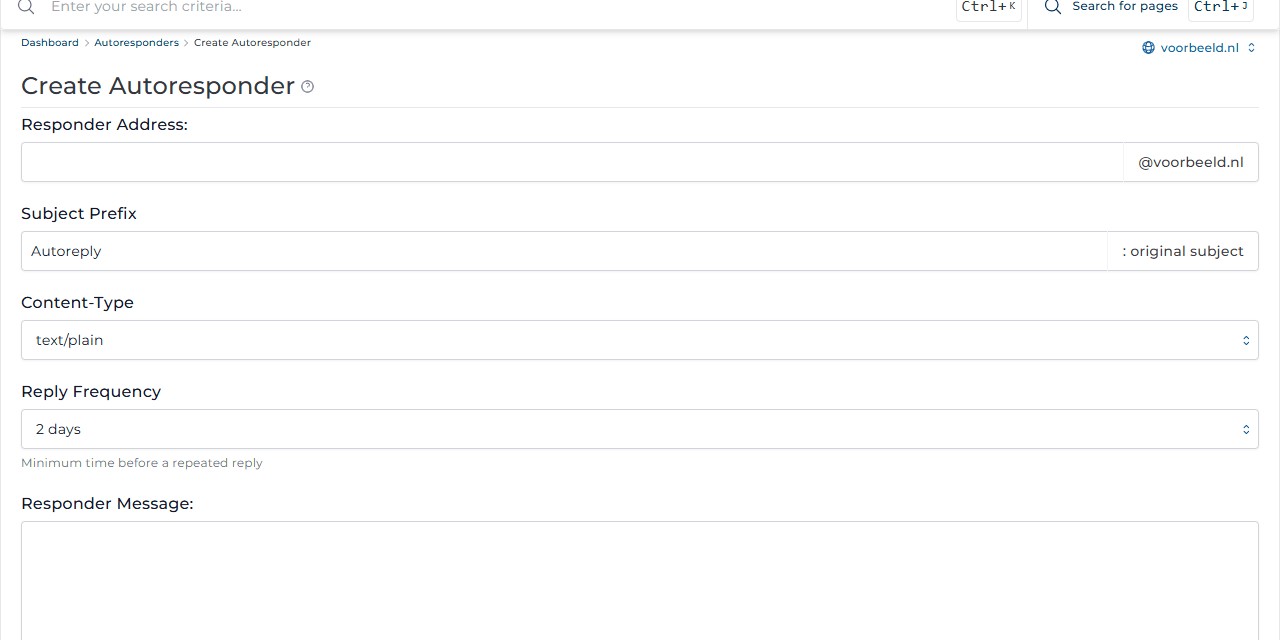
- Go to E-mail Manager → Autoresponders and click Create Autoresponder.
- Enter the Responder Address, the Subject Prefix (added before the original subject) and your Responder Message.
- Reply Frequency sets how often the same sender gets a reply, for example once every 2 days.
- Want a copy yourself? Fill in Send a CC to. Click Save.
Vacation message
A vacation message works like an autoresponder, but only between two dates, so it stops by itself.
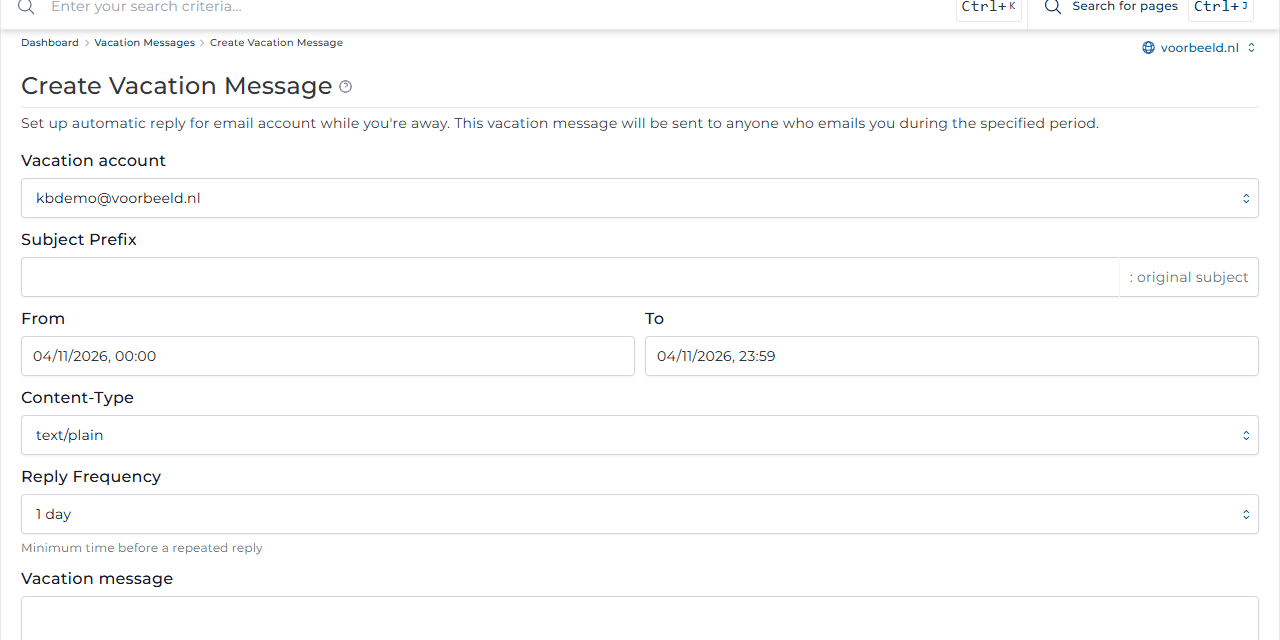
- Go to E-mail Manager → Vacation Messages and click Set Vacation Message.
- Choose the mailbox under Vacation account and set the period with From and To.
- Write your message, for example when you are back and who is covering for you. Click Create.