
PHP version and settings
Choose another PHP version and adjust settings such as memory_limit or upload_max_filesize.
Websites built in PHP, such as WordPress, need a suitable PHP version. Newer versions are faster and more secure. Old websites sometimes only work on an older version.
Choosing the PHP version
- Go to Account Manager → PHP Settings.
- Choose the version under PHP Version. The choices include PHP 8.3, 8.1, 8.0 and 7.4.
- Click Update Version.
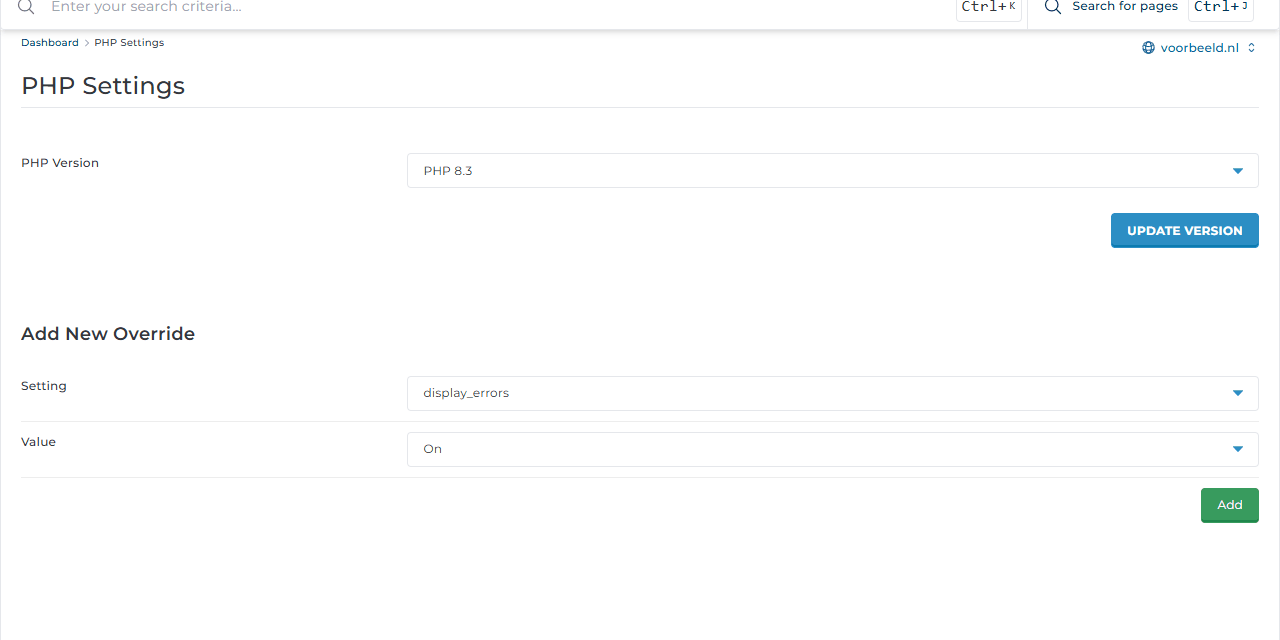
The choice applies to the domain selected at the top right. You can set a different version per subdomain.
Choose the newest version your website supports. PHP 7.4 and older no longer receive security updates. Only use them temporarily, until your website has been updated. Test a new version first, for example on a copy of the site on a subdomain.
Changing settings
Under Add New Override you change a PHP setting for your domain:
- Choose the Setting, for example
upload_max_filesize. - Enter the Value, for example
64M, and click Add.
Commonly used settings:
| Setting | Purpose | Example |
|---|---|---|
upload_max_filesize |
Largest file you can upload through the website | 64M |
post_max_size |
Largest form including files. At least as large as upload_max_filesize |
64M |
memory_limit |
Memory per page, for example for an online shop or page builder | 256M |
max_execution_time |
How long a script may run, in seconds | 120 |
max_input_vars |
Number of fields in a form, for example for large menus in WordPress | 3000 |
display_errors |
Show errors on screen. Only turn on temporarily while tracking down a problem | Off |
Always set
display_errorsback to Off on a live website. Error messages can reveal sensitive information to visitors.