
Blocking spam with SPAM Filters
Block mail from certain senders or domains, or containing certain words.
Keep getting mail from the same sender or about the same topic? SPAM Filters block it for all your mailboxes at once.
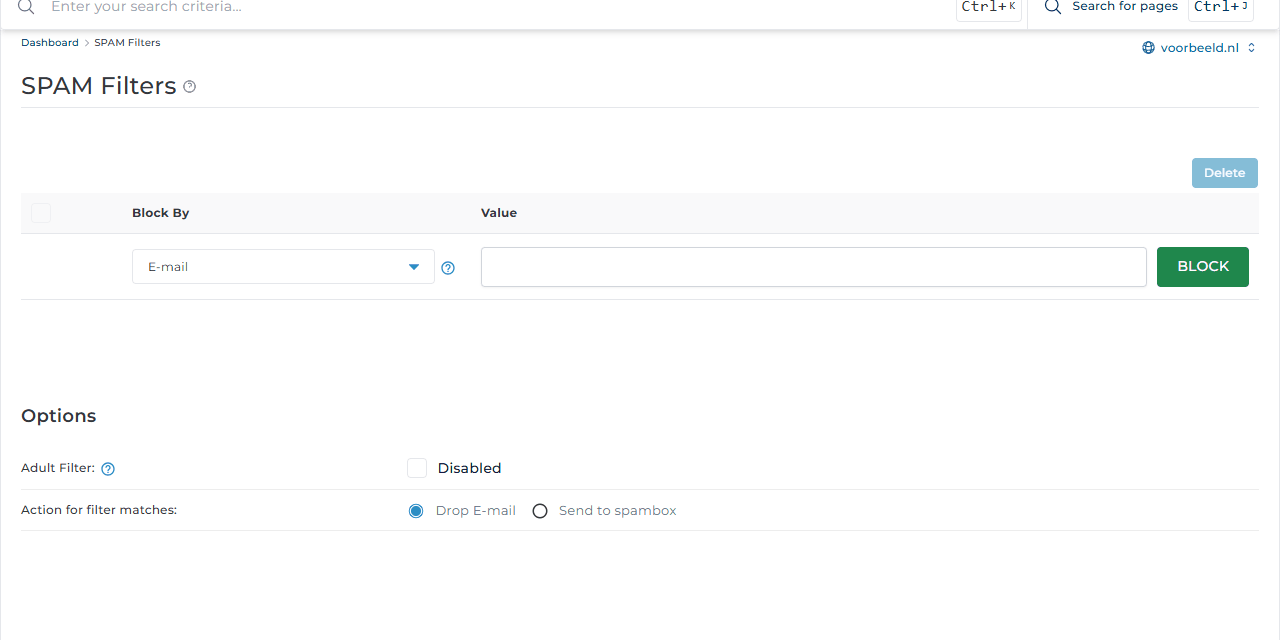
Adding a filter
- Go to E-mail Manager → SPAM Filters.
- Under Block By, choose what to filter on:
- E-mail: one sender, for example
offers@spammer.example; - Domain: every sender from a domain, for example
spammer.example; - Stop word: mail containing a certain word;
- Size: mail larger than a certain size.
- E-mail: one sender, for example
- Enter the Value and click Block.
What happens to blocked mail
Under Options, choose an Action for filter matches:
- Drop E-mail: the mail is discarded;
- Send to spambox: the mail goes to the mailbox's Spam folder, so you can still find it.
When in doubt, choose Send to spambox. You see the Spam folder in webmail and in your email app when you use IMAP. Empty it now and then, or use Purge under E-mail Accounts.
Adult Filter also blocks mail containing common words from adult spam.
Tips
- Only use stop words that never appear in normal mail. Otherwise you will miss real email.
- These filters cannot stop spam from constantly changing senders. Use your email app's spam filter as well, and keep your addresses off public websites.
- Is your own mail ending up in other people's spam? Set up SPF, DKIM and DMARC properly.