
Making and restoring backups
Knippin makes a backup every night. Here is how to restore a file, database or mailbox yourself, or make an extra backup.
Automatic backups
Knippin automatically backs up your web hosting package every night: website, databases, email and settings. You can restore from it yourself with Backuply, going back days, weeks and months.
Restoring with Backuply
- Go to Extra Features → Backuply Incremental Backups.
- Under Restore & Download, choose what to restore:
- Full Backups: the whole package;
- Home Directory: files and folders, including single files;
- Database: a database;
- Email Accounts: email addresses with their mail;
- plus Domains, Database Users, Cron Jobs and FTP Accounts.
- Choose the backup date and what to restore, and start the restore. You can also download instead of restoring.
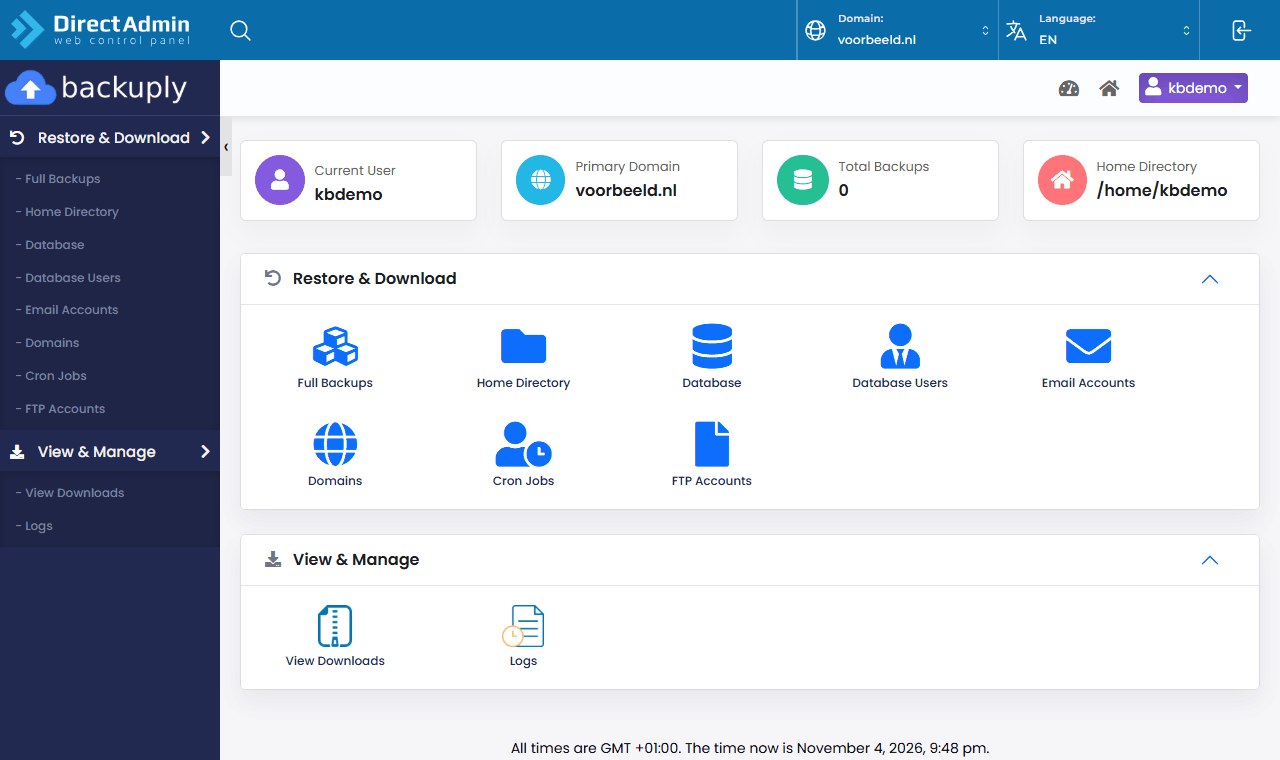
View & Manage shows your downloads (View Downloads) and what happened (Logs).
Restoring overwrites the current version. Not sure? Download first, or restore a single folder instead of everything. Or create a ticket and we will help you.
Making a backup yourself
About to make a big change, such as an update or a move? Make a backup yourself first.
- Go to Advanced Features → Backup and Restore.
- Under Domains, choose all domains or only some.
- Under Options, choose what to include: website files, email addresses and mail, forwarders, FTP accounts, databases and more.
- Click Backup.
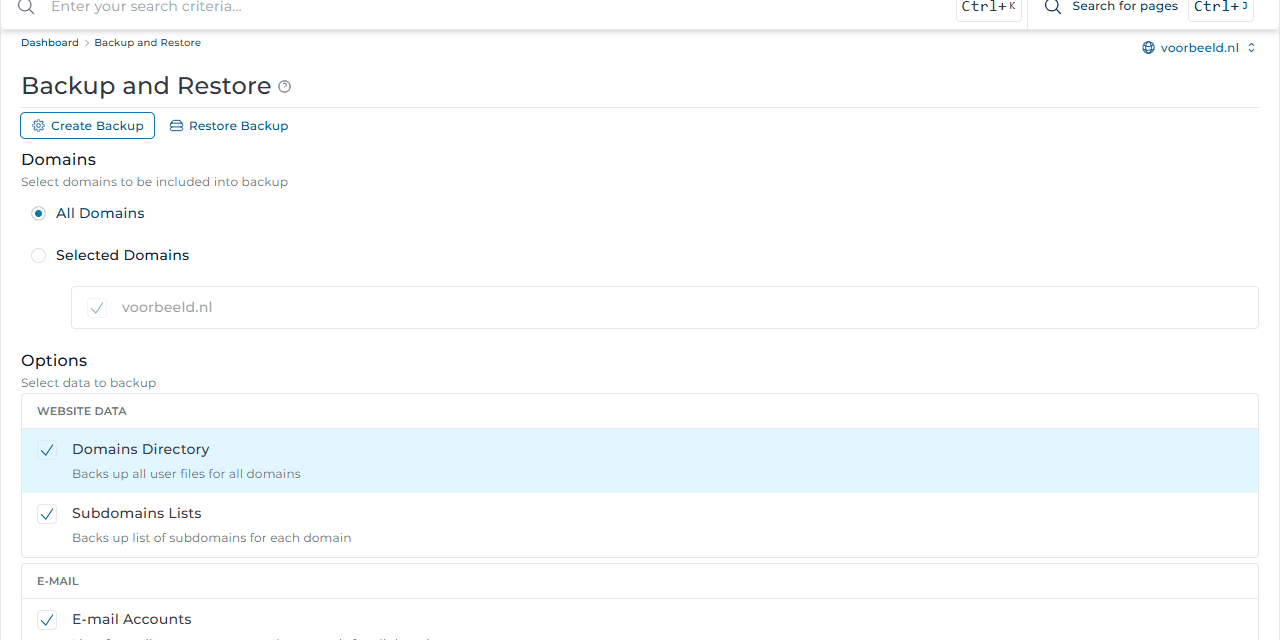
The backup is made in the background and you get a message when it is ready. The file goes into the backups folder in your account, so you can download it via the File Manager or FTP.
Such a backup counts towards your disk space. Download it, then delete it from
backups.
Restoring your own backup
- Go to Advanced Features → Backup and Restore and choose Restore Backup.
- Choose the backup file from the
backupsfolder and what to restore. - Start the restore.
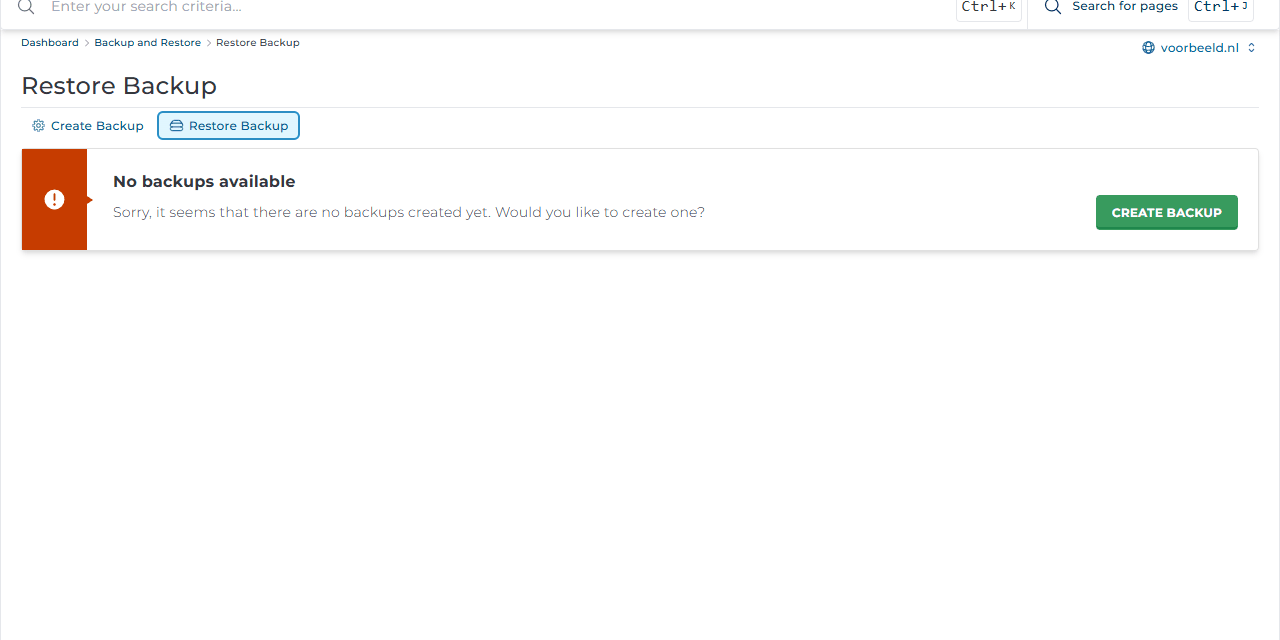
Using WordPress? You can also back up each site in Softaculous.