
Cron jobs: running tasks automatically
Run a script at fixed times, for example the WordPress cron or an import.
A cron job runs a command automatically at fixed times, for example an import every night or WordPress's scheduled tasks every 5 minutes.
Creating a cron job
- Go to Advanced Features → Cron Jobs and click Create Cron Job.
- Set when the task runs with Minute, Hour, Day of Month, Month and Day of Week. At the bottom you see in plain words when it runs (Cron job will run).
- Enter the command under Command.
- Click Create.
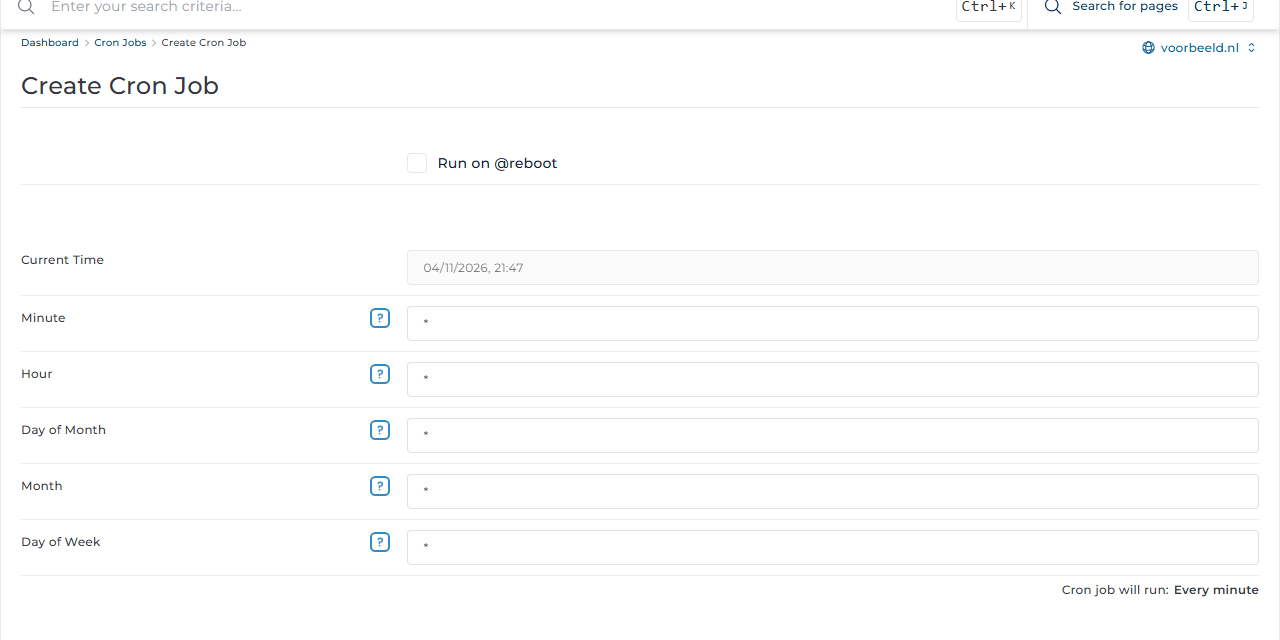
Setting the times
A * means "every". Some examples:
| Minute | Hour | Day of Month | Month | Day of Week | Means |
|---|---|---|---|---|---|
*/5 |
* |
* |
* |
* |
every 5 minutes |
0 |
* |
* |
* |
* |
every hour on the hour |
30 |
3 |
* |
* |
* |
every night at 03:30 |
0 |
7 |
* |
* |
1 |
every Monday at 07:00 |
0 |
0 |
1 |
* |
* |
the first of every month at midnight |
Separate multiple values with commas (1,15); write a range with a hyphen (1-5 is Monday to Friday).
Example commands
- Run a PHP script:
php /home/username/domains/voorbeeld.nl/public_html/script.php - Call a page, for example the WordPress cron:
curl --silent https://www.voorbeeld.nl/wp-cron.php > /dev/null
Replace username and voorbeeld.nl with your own details. You can see the full path in the File Manager.
Email from cron jobs
By default you receive each task's output by email. Click Prevent E-mail to turn that off for a task, or use Send all cron output to e-mail to set one address for all tasks.
Do not run a task more often than needed. A heavy script every minute slows your website down and counts towards your server load.